
No products in the cart.
WordPress Maintenance
How Often Should You Update WordPress? Plugins, Themes & Core
WORDPRESS UPDATE GUIDE
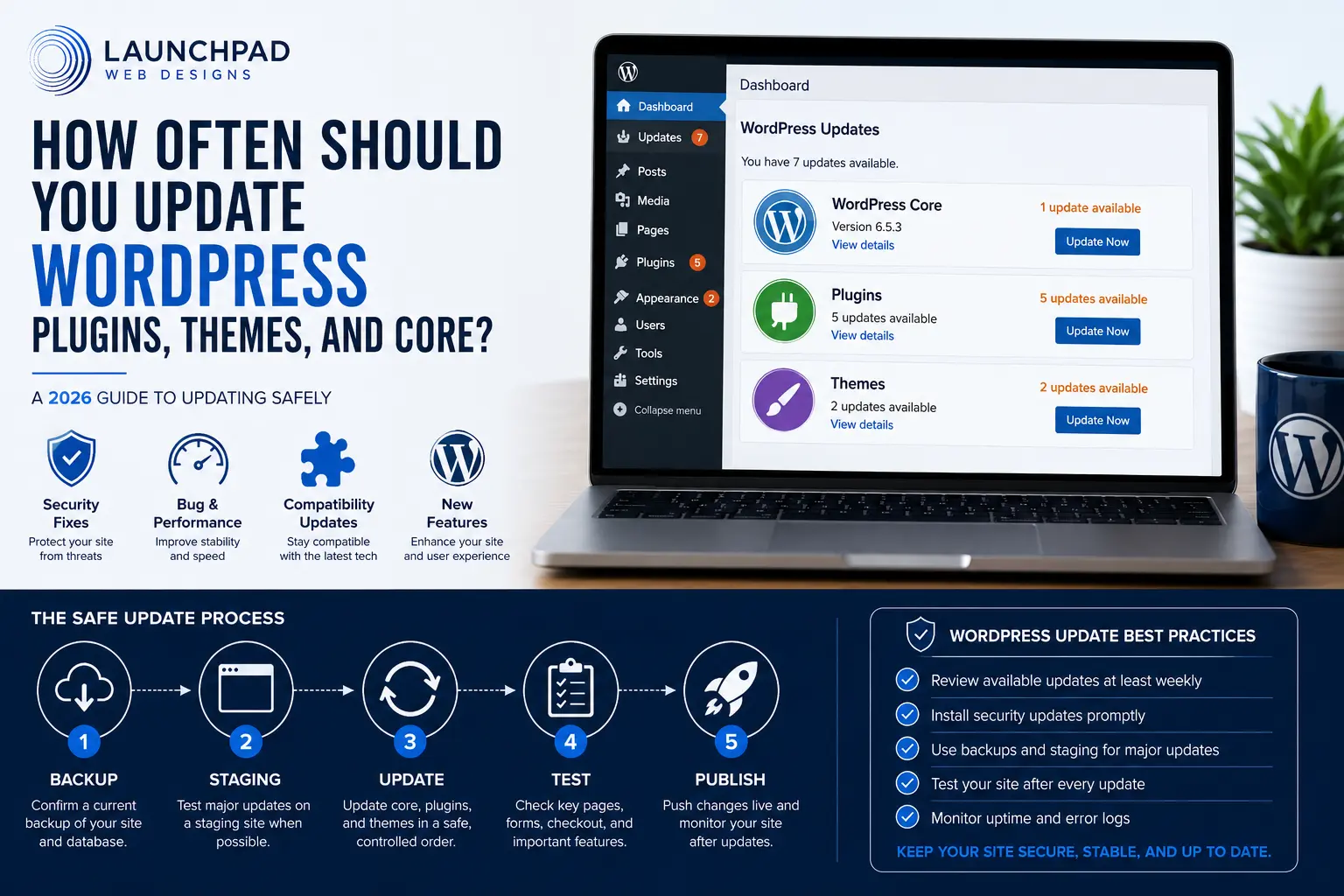
How Often Should You Update WordPress Plugins, Themes, and Core? (2026)
WordPress updates should be reviewed regularly, but not every update carries the same urgency or risk.
For most small-business websites, a practical approach is to review updates at least weekly, install important security fixes promptly, and test routine or major changes through a scheduled maintenance process.
This guide explains how often to update WordPress core, plugins, and themes—and how to do it without creating unnecessary problems.
Updated for 2026 · WordPress core · Plugins · Themes · Safe website maintenance
THE QUICK ANSWER
How often should WordPress be updated?
Review available WordPress core, plugin, and theme updates at least once per week. Security releases should be evaluated promptly and installed as soon as practical after confirming a current backup. Routine maintenance updates can usually be handled during a scheduled weekly or monthly maintenance session, while major releases deserve compatibility review and sometimes staging tests first.
Websites handling ecommerce, memberships, bookings, payments, or other business-critical functions may need more frequent monitoring.
SECURITY RELEASE
Review immediately
Prioritize updates that address known vulnerabilities, especially when active exploitation has been reported or the affected component is publicly accessible.
ROUTINE UPDATE
Review within days
Bug fixes, maintenance releases, and smaller compatibility improvements can normally be included in the next appropriate maintenance window.
MAJOR RELEASE
Research and test first
Significant WordPress, plugin, theme, WooCommerce, or page-builder releases may introduce compatibility or database changes and deserve additional testing.
WORDPRESS’S OWN GUIDANCE
WordPress recommends keeping its software current
WordPress documentation recommends keeping plugins and themes on current versions for security and performance, and it specifically advises having a current backup before installing plugin updates or enabling automatic updates.
WordPress also treats security releases differently from ordinary feature releases. When a release fixes significant security issues, the WordPress security team may explicitly recommend updating immediately.
That is why a good maintenance strategy is not simply “wait a month” or “install everything immediately.” The reason for the update matters.
THE PRACTICAL RULE
Review regularly. Prioritize by risk.
Security: act promptly
Bug/maintenance: schedule appropriately
Major release: research first
Business-critical software: test more carefully
In This Guide
Why WordPress updates matter
How often to update core, plugins, and themes
Which updates need immediate attention
How to update WordPress safely
Which components should be updated first
Should automatic updates be enabled?
When to use a staging site
What to test after updating
What to do if an update causes a problem
How to handle abandoned plugins and themes
WooCommerce update considerations
Common WordPress update mistakes
Frequently asked questions
WHY WORDPRESS UPDATES MATTER
Updates are about more than getting new features
WordPress core, plugin, and theme updates can repair vulnerabilities, fix software defects, improve compatibility, address accessibility issues, and keep the site aligned with supported versions of WordPress, PHP, browsers, and connected systems.
Security repairs
Updates may close vulnerabilities that could otherwise allow unauthorized access, modification, disruption, or misuse.
Bug fixes
Updates can correct problems affecting forms, layouts, administration, checkout, payments, integrations, or other functionality.
Compatibility
Plugins and themes need to remain compatible with WordPress core, PHP, WooCommerce, browsers, APIs, and one another.
Performance and accessibility
Updates may improve efficiency, standards support, usability, and accessibility.
Continued support
Plugin and theme developers may require current supported versions before troubleshooting a problem.
RECOMMENDED UPDATE FREQUENCY
How often should you update WordPress core, plugins, and themes?
The appropriate timing depends on what the release changes, whether a security vulnerability is involved, how important the component is to the site, and how safely the website can be tested and restored.
WORDPRESS CORE
Review every release
Security and maintenance releases: normally install promptly after confirming backups.
Major releases: review compatibility, release notes, and the needs of important plugins and themes first.
PLUGINS
Review at least weekly
Prioritize security releases. Routine plugin updates can be installed during scheduled maintenance after reviewing the release information.
Payments, forms, caching, security, memberships, ecommerce, and integrations deserve additional care.
THEMES
Review regularly
Do not ignore theme updates simply because the site’s appearance has not changed.
Install security and compatibility fixes after confirming customizations are protected and the theme remains compatible with the site.
The key distinction: “check weekly” does not mean “blindly install every update every Friday.” It means your website should be reviewed often enough that important security or compatibility releases do not sit unnoticed for weeks or months.
WHEN NOT TO WAIT
Which WordPress updates should be installed quickly?
An update notification by itself does not show how urgent the change is. Check the release notes, developer guidance, and trusted security information associated with the affected software.
□ A known vulnerability is being actively exploited.
Prompt action can reduce the period during which the website remains exposed.
□ The vulnerability does not require authentication.
A flaw that can be exploited without logging in may present broader exposure.
□ The affected component is active and publicly accessible.
Risk is different for an active public feature than for unused software.
□ The issue affects payments, accounts, privacy, or sensitive data.
Business-critical and customer-facing systems deserve greater urgency.
□ The developer or a trusted security source recommends immediate action.
The recommendation may involve updating, disabling a feature, deactivating the plugin, or another temporary mitigation.
A SAFER WORDPRESS UPDATE PROCESS
Do more than click “Update All”
A repeatable process makes it easier to prevent problems, identify conflicts, and restore the site when an update does not work as expected.
1. Review the update
Determine whether it is a security fix, maintenance release, major version, feature change, or compatibility update. Read release notes when available.
2. Confirm a current backup
Protect both the database and website files and make sure the backup can actually be accessed if restoration becomes necessary.
3. Check compatibility
Review WordPress, PHP, active theme, WooCommerce, page-builder, and important plugin requirements before high-impact updates.
4. Use staging when appropriate
Test major, database-changing, or business-critical updates on a private copy before changing the production site.
5. Update in manageable groups
Avoid combining numerous unrelated high-impact changes. Smaller batches make troubleshooting substantially easier.
6. Test the live experience
A successful dashboard message does not prove the website still works. Test the functions visitors and customers actually use.
WordPress’s own plugin documentation specifically recommends having a current site backup before updating plugins. Your backup strategy should also match how frequently the website changes. Read How Often Should You Back Up Your WordPress Website?.
UPDATE ORDER
Which WordPress component should be updated first?
There is no universal WordPress-core-first or plugins-first rule that works for every site. Dependencies, release instructions, compatibility requirements, and the importance of each component should guide the sequence.
1. Confirm the backup before anything changes.
2. Read instructions for major or dependent products.
WooCommerce, payment extensions, memberships, page builders, booking systems, and other platforms may specify an update order.
3. Consider dependencies.
An extension may require a newer parent plugin—or vice versa.
4. Separate major changes from routine changes.
5. Test after each meaningful group.
WORDPRESS AUTOMATIC UPDATES
Should WordPress plugin and theme auto-updates be enabled?
Automatic updates can shorten the time a site remains on an outdated version. WordPress allows administrators to enable them individually for plugins and themes, and WordPress normally checks eligible auto-updates twice per day.
But automatic installation is not the same as automatic verification. Backups, monitoring, update notifications, and functional testing are still important.
AUTO-UPDATES MAY FIT
Lower-risk components
✓ Simple, established plugin
✓ Reliable update history
✓ Dependable backups
✓ Monitoring is active
✓ Update notifications are reviewed
✓ Component is not heavily customized
MANUAL REVIEW MAY FIT
Higher-risk components
✓ Payments or checkout
✓ Memberships or subscriptions
✓ Booking systems
✓ Custom theme modifications
✓ Major-version updates
✓ Interdependent plugins
✓ Downtime would materially affect the business
STAGING AND UPDATE TESTING
When should you use a staging site for WordPress updates?
A staging site is a private copy of the website used to test changes before they affect visitors. It is especially valuable when a change touches several important systems or when even short downtime would create a business problem.
□ Major WordPress releases
□ WooCommerce updates
□ Payment gateways
□ Major theme or page-builder updates
□ Membership or subscription systems
□ Booking or course platforms
□ Database-changing releases
□ Extensive custom code
□ Several dependent plugin updates
□ Business-critical sites
POST-UPDATE TESTING
What should you test after updating WordPress?
Test the functions that matter to the business—not simply whether the homepage opens.
□ Homepage and major service/product pages
□ Desktop, tablet, and mobile layouts
□ Navigation, buttons, links, and site search
□ Contact and lead-generation forms
□ Form email notifications
□ Account login and password reset
□ Galleries, sliders, popups, and accordions
□ Scheduling and CRM integrations
□ Ecommerce products, cart, and checkout
□ Payment gateways
□ Shipping and taxes
□ Transactional emails
□ WordPress Site Health and relevant error logs
□ Relevant caches after verification
WHEN AN UPDATE CAUSES A PROBLEM
Don’t respond with a series of untracked changes
When an update breaks something, protect the site, identify what changed, and use a controlled recovery process.
1. Document the problem.
Record the affected page, error, recent updates, time, device, and browser.
2. Rule out caching.
3. Review logs and WordPress recovery notices.
4. Avoid randomly disabling everything.
5. Roll back or restore when appropriate.
Remember that restoring an older vulnerable version may be only a temporary recovery step.
6. Investigate the underlying compatibility issue before trying again.
OUTDATED AND ABANDONED SOFTWARE
What if a plugin or theme stops receiving updates?
No update notification does not necessarily mean the software is safe and current. The developer may simply have stopped maintaining it.
□ Check when the software was last updated
□ Review supported WordPress and PHP versions
□ Look for developer announcements
□ Review unresolved support reports
□ Check whether the premium license is active
□ Decide whether the component is still necessary
□ Identify a maintained replacement if needed
□ Test the replacement before removing the original
WOOCOMMERCE UPDATES
WooCommerce updates deserve additional care
WooCommerce updates can affect products, orders, checkout, customer accounts, payments, taxes, shipping, subscriptions, emails, templates, extensions, and database structures.
For a live store, the question is not simply whether the update installs—it is whether customers can still successfully complete the entire purchase journey afterward.
BEFORE UPDATING
Prepare the store
□ Confirm current backup
□ Review WooCommerce release notes
□ Check extensions and theme compatibility
□ Confirm gateway readiness
□ Use staging for meaningful releases
□ Avoid peak sales periods
□ Know the rollback process
AFTER UPDATING
Test the customer journey
□ Products and variations
□ Add/remove cart items
□ Coupons and discounts
□ Shipping and taxes
□ Checkout
□ Test payment
□ Confirmation emails
□ Account and download access
UPDATES ARE ONLY ONE PART OF WEBSITE CARE
A healthy WordPress site needs more than software updates
Updates matter, but a complete maintenance process also includes backups, security monitoring, uptime monitoring, performance checks, form testing, database and content review, and a recovery plan.
See the WordPress Maintenance Checklist for the full recurring process or read What Is a WordPress Maintenance Plan? if you’re comparing professional Website Care options.
COMMON WORDPRESS UPDATE MISTAKES
The biggest risk is usually the process—not the update button itself
Waiting several months to review available updates
Updates can accumulate, leaving known issues unresolved and making eventual maintenance more complex. Review available updates regularly even when they are not installed immediately.
Updating without a current backup
An update can expose an existing compatibility issue or create a new one. Confirm that the database and site files are protected before making meaningful changes.
Installing every update simultaneously
Large update batches make it harder to identify which component caused a problem. Use manageable groups and test important functions between them.
Assuming a successful update means the website works
The dashboard may report success while a form, checkout process, layout, integration, or mobile feature is broken. Test from the visitor’s perspective afterward.
Ignoring plugin and theme licenses
Expired or disconnected premium licenses may prevent access to updates, compatibility information, or support.
Editing a parent theme directly
Parent-theme updates can overwrite direct modifications. Use supported settings, a child theme, or another appropriate customization method.
Leaving unused software installed
Inactive plugins and themes can still become outdated. Remove unnecessary components once you have confirmed the site does not depend on them.
Enabling automatic updates without monitoring
Automatic updates still require backups, notifications, monitoring, and periodic functional checks.
COMMON QUESTIONS
WordPress update FAQs
Quick answers about update frequency, security releases, automatic updates, backups, staging, testing, and update failures.
How often should I check for WordPress updates?
Review available WordPress core, plugin, and theme updates at least once per week. Business-critical or higher-risk websites may require more frequent monitoring, particularly when security alerts are available.
Should I install WordPress updates immediately?
Review every update promptly, but base installation timing on its purpose and risk. Security releases may require immediate or rapid action. Major feature releases may deserve compatibility research, a current backup, and staging tests before installation.
How often should WordPress plugins be updated?
Review plugin updates at least weekly. Install important security fixes promptly after confirming a current backup. Routine maintenance releases can normally be included in a scheduled weekly or monthly maintenance session depending on the site’s risk and activity.
How often should a WordPress theme be updated?
Review theme updates regularly and prioritize security or compatibility releases. Confirm that customizations are stored safely in a child theme, supported settings, or another appropriate location before updating the parent theme.
Should I enable automatic plugin updates?
Automatic updates can be appropriate for stable, lower-risk components when dependable backups and monitoring are in place. Complex plugins controlling ecommerce, payments, memberships, subscriptions, custom layouts, or other business-critical functions may deserve manual review.
Should I back up WordPress before every update?
Confirm a current backup before installing important updates or groups of updates. The backup should include the database and site files and should be accessible if restoration becomes necessary.
Do I need a staging site to update WordPress?
Not every maintenance release requires staging. Staging is particularly useful for major WordPress releases, WooCommerce, page builders, themes with custom code, database changes, and websites where downtime could significantly affect the business.
What should I test after updating WordPress?
Test the homepage, important pages, mobile layout, navigation, forms, email notifications, account access, interactive elements, and connected services. Ecommerce sites should also test products, cart, checkout, payments, shipping, taxes, and transactional emails.
What happens if I do not update WordPress?
The website may remain exposed to known security issues, compatibility problems, software defects, and unsupported components. Risk can increase as outdated versions accumulate while the rest of the site’s technology continues changing.
What should I do if a WordPress update breaks my website?
Document the problem, review logs and recovery notices, rule out caching issues, and identify the most recent change. Use a controlled rollback or backup restoration when appropriate, then investigate the underlying compatibility problem before trying the update again.
CONTINUE THE WORDPRESS MAINTENANCE SERIES
Build a complete Website Care strategy
Software updates are one piece of a larger WordPress maintenance process. Continue with backups, security, reporting, maintenance costs, and recurring Website Care.
ONGOING WORDPRESS WEBSITE CARE
WordPress updates should be managed—not merely installed
LaunchPad Website Care combines managed WordPress updates with backups, uptime monitoring, security checks, performance reviews, reporting, and direct support.
WEBSITE CARE
Compare monthly plans
LaunchPad Website Care currently starts at $60/month, with higher levels available for websites requiring more active review and support.
View Website Care Plans